
Teacher, make these preparations
Note! Be careful with the task sheet!
In this section, there is only one task form with all the tasks of the SOMEkone numbered. Each number corresponds to one phase of using the tool
Note! Remember to watch the instruction video for the teacher!
Be sure to watch the instruction video for teachers on the Somekone user manual!
Let’s get started!
Last time, we deduced who the person was from the data clues. Today, we do the same thing automatically using a somekone
Teacher, show a video on how to use a somekone
Next, use the somekone
Teacher, start the somekone
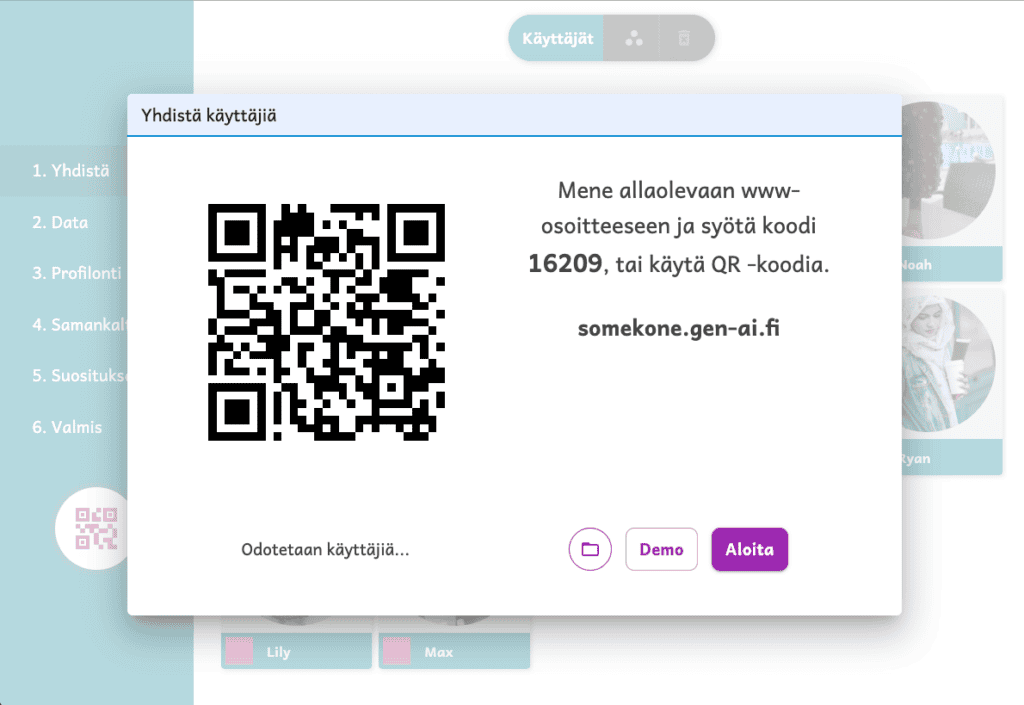
The role of pupils
One of the pair opens the QR code on their device
If the device asks for permission to use the camera, please allow it. Somekone will not start otherwise.
Come up with a username
Come up with a username together. Put both of your first names in the name field. Then press “start”
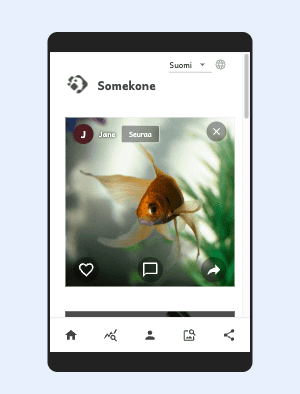
See pictures and try out the features
You have a few moments to use the features of the social networking service. Take a look at the app.
Teacher, use the other devices in pairs
Teacher, go to the data tab
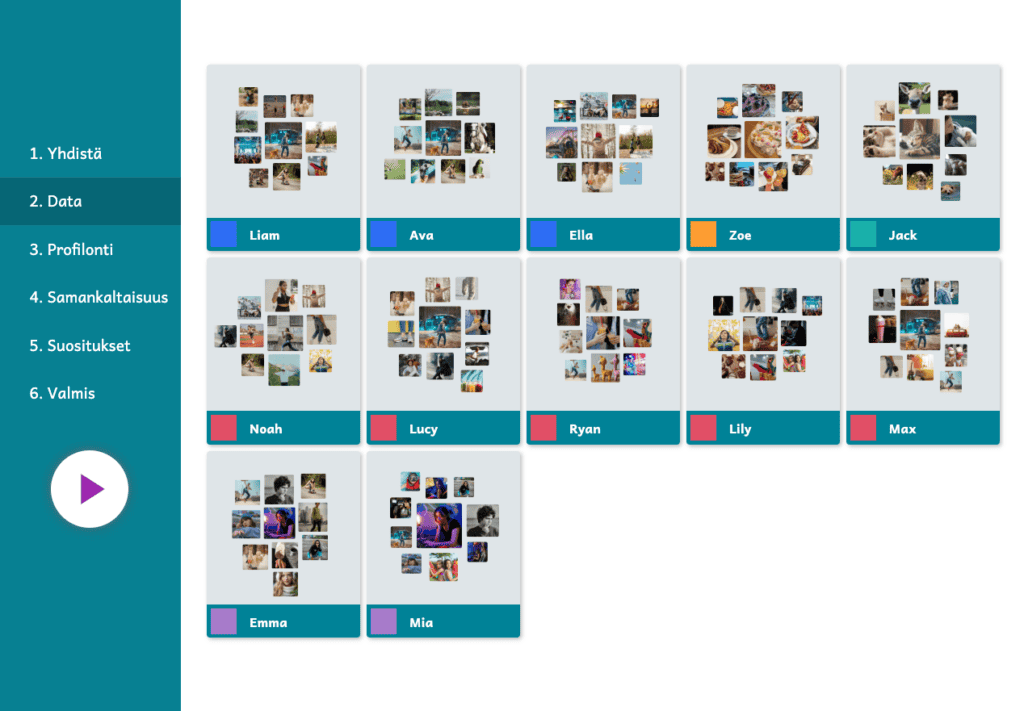
Show what kind of data the machine collects about users by opening the profiles of different students on the teacher’s screen. Invite pairs to use another device to study their social media usage
The role of pupils
Keep using the somekone
Keep using the somekone, try to be as active as possible!
Explore the data view of a couple of other sites
Browse the photo stream on your somekone and look at the activity score of your photos on a couple of other devices.
Please answer the questions in section 1 of the task sheet
Answer the questions in section 1 of the task sheet!
Discuss with the whole class what kind of activity points the students got!
Teacher, go to the profiling tab
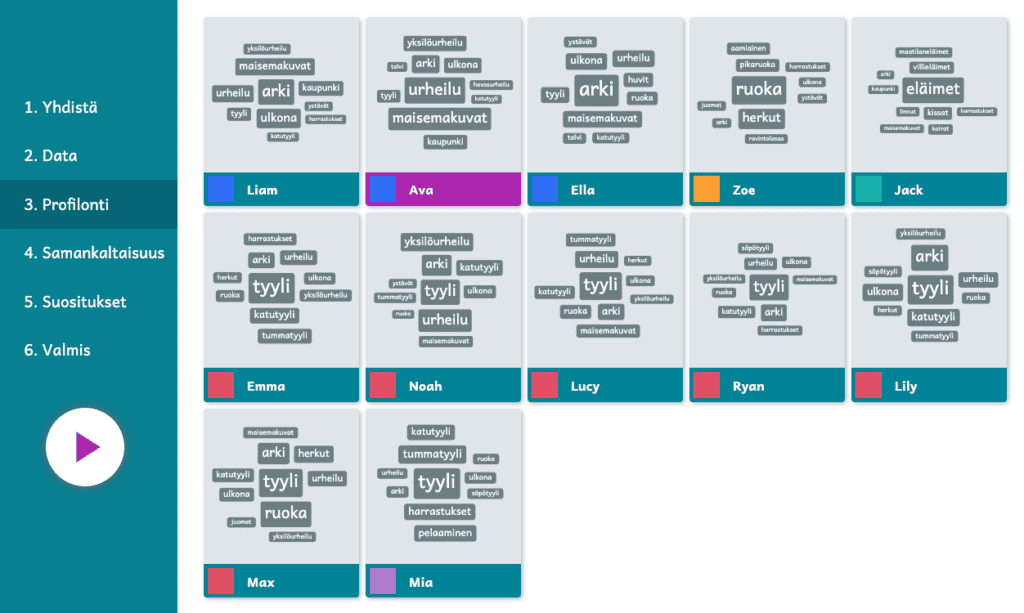
All photos have a subject tag, i.e. #hashtag. The profile of the somekone shows the most common subject tags. They are based on images you have actively responded to.
The role of pupils
Keep using the somekone
You can continue to view photos on the couples’ devices that have a “somekone”
Explore the profile page on another device or two
Find out what kind of profile a social networking site has created about you. Did it manage to profile you well?
Please answer the questions in section 2 of the task sheet
Answer the questions in section 2 of the task sheet!
Teacher, go to the similarity tab
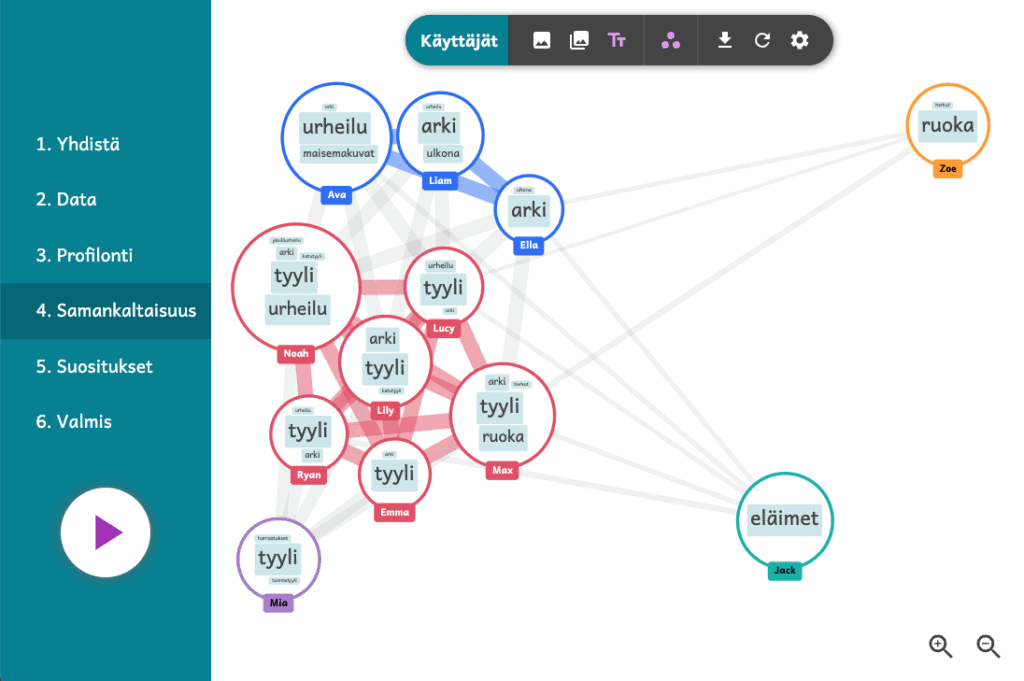
The role of pupils
Keep using the somekone
You can continue to view photos on the couples’ devices that have a “somekone”
Find your profile on the teacher screen
See whose profiles are closest to yours? Why?
Please answer the questions in section 3 of the task sheet
Answer the questions in section 3 of the task sheet!
Teacher, go to the recommendations tab
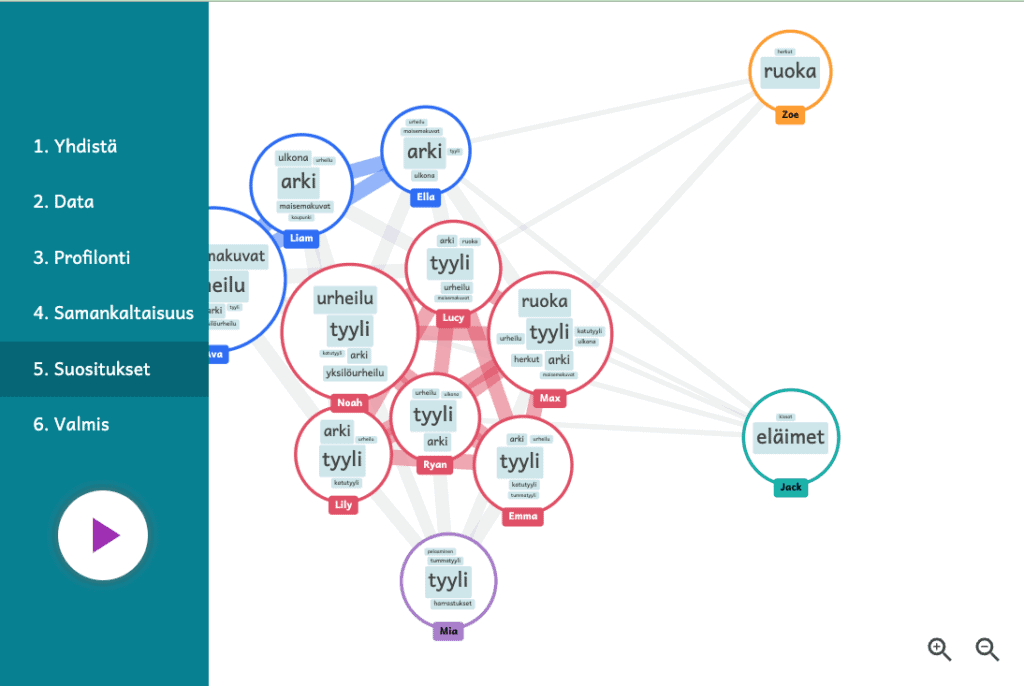
You will have noticed that if you have been actively reacting to, for example. for sports photos, will somekone show more sports photos?
The role of pupils
Keep using the somekone
You can continue to view photos on the couples’ devices that have a “somekone”
Check the recommendations tab on your partner’s phone
How does a somekone engine know how to choose the images that interest you?
Please answer the questions in section 4 of the task sheet
Answer the questions in section 4 of the task sheet!


